







How to Manually Upload PostureScreen Images to Postureray
On this page 5 sections
Summary
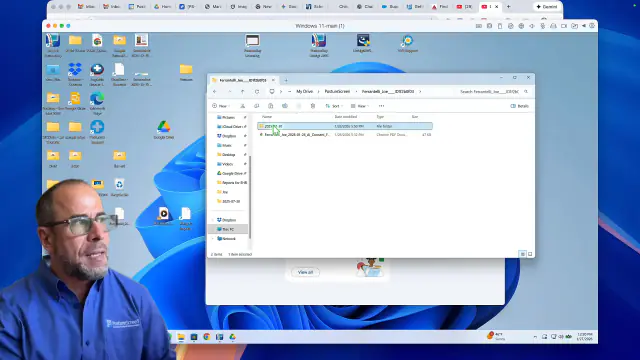
In this tutorial, we’ll review how to manually upload images from anywhere, with a specific focus on transferring images from PostureScreen into PostureRay. This workflow is ideal when you’re not using a direct integration and need a simple, reliable way to move posture images between platforms.
Manual Image Upload: PostureScreen → PostureRay#
In this tutorial, we’ll review how to manually upload images from anywhere, with a specific focus on transferring images from PostureScreen into PostureRay. This workflow is ideal when you’re not using a direct integration and need a simple, reliable way to move posture images between platforms.
Before starting, it’s important to understand how to use the Apple Files app with a cloud sharing service such as Dropbox or Google Drive. These services allow you to export images from PostureScreen and then access them on another device for upload into PostureRay.
What You’ll Need#
- PostureScreen installed on an iPad or iPhone
- Access to Dropbox, Google Drive, or another file-sharing service through the Files app
- PostureRay installed on your desktop or workstation
Overview of the Workflow#
- Export images from PostureScreen
Open the patient assessment in PostureScreen and use the export or share option to Save to Files. - Store images in a cloud folder
Choose a folder in Dropbox or Google Drive within the Files app so the images are easy to find. - Access images on your computer
Open the same Dropbox or Google Drive account on your computer (via desktop sync or web access) and download or sync the images. - Upload images into PostureRay
Use PostureRay’s image import functionality to upload the exported PostureScreen images into the patient’s record.
Important Notes#
- Make sure you’re logged into the same cloud account on both your mobile device and computer.
- Use consistent folder naming (for example, “PostureScreen Exports”) to streamline your workflow.
- Always confirm your file-sharing setup aligns with your clinic’s data security and compliance requirements. Dropbox, Google Drive and other file-sharing services are third-party services you choose, not part of PostureCo’s services, and no agreement with PostureCo covers them. If you are a HIPAA covered entity or business associate, use one for patient images only under a business account covered by your own business associate agreement (BAA) with that company; on the PostureRay computer, the same applies to OneDrive, Windows Backup or any other cloud backup provider that copies the folder where you save the images. If you work in health and fitness only, which service you use is up to you.
Patient information and Apple iCloud: iCloud Backup, iCloud Photos and iCloud Drive are Apple services, not part of PostureCo’s services, and no agreement with PostureCo covers them.
- If you are a HIPAA covered entity or business associate (most practices that bill health insurance electronically are), you should take these precautions, because Apple’s iCloud terms do not allow you to use iCloud for protected health information (PHI): do not choose iCloud Drive when you tap Save to Files; turn off iCloud Backup for PostureScreen (Settings > [your name] > iCloud > iCloud Backup, or Storage > Backups, then choose this device and turn off PostureScreen); turn off “Save images to device Photos app” and “Save videos to device Photos app” in PostureScreen and keep patient photos out of the Photos app (with iCloud Photos on, they upload to iCloud; with it off, iCloud Backup can include them); and back up with PostureCo Cloud Services (Cloud Backup in the app), under a BAA we sign for U.S. healthcare practices on request, or an encrypted computer backup you control.
- If you work in health and fitness only and are not covered by HIPAA, these precautions are recommended but optional. Whether you take them is up to you, as long as you follow any other privacy law that applies to you.
See Section 7 of our Terms of Service.
Recommended Prerequisite#
Before following this tutorial, review the guide on using the Files app with Dropbox and Google Drive to send reports and images:
DropBox & Google Drive Integration with PostureScreen: Sending Reports and Images
 5:42
5:42
Related articles
-
 PostureScreen for iPad & iPhone
PostureScreen Push to PostureRay TroubleShooting
If you are having difficulties uploading directly from your PostureScreen iPad or iPhone app to your PostureRay system, please review…
2 videos · 4:214 min read
PostureScreen for iPad & iPhone
PostureScreen Push to PostureRay TroubleShooting
If you are having difficulties uploading directly from your PostureScreen iPad or iPhone app to your PostureRay system, please review…
2 videos · 4:214 min read
-
PostureScreen for iPad & iPhone
Cloud Backup Automatic Upload Feature
SyncScreen Cloud has rebranded to Cloud Backup Services. In this tutorial we review the basics of the new update starting in version 11.4…
Video · 11:591 min read
-
PostureScreen for iPad & iPhone
Cloud Backup Services – Uploading, Downloading Clients
Please note SyncScreen has rebranded to Cloud Backup Services. In this tutorial we review the basics of the new update starting in version…
2 videos · 18:455 min read
-
PostureScreen for iPad & iPhone
Multiple Devices adding assessments to the same client
New Patient “John Doe” comes into the office for an initial exam. Exam is done on John Doe on iPad A. Reports are generated/emailed. John…
Video · 9:091 min read
-
PostureScreen for iPad & iPhone
PostureScreen Push to PostureRay System
In this tutorial we will review how to integrate PostureScreen with version 20 (or later) of PostureRay. Please note if you are pushing…
Video · 2:231 min read
- PostureRay X-Ray EMR PostureScreen Integration with PostureRay through Virtual View Box Step-by-step PostureRay training for customers. Article
Have a question?
Talk to the people who build PostureScreen and PostureRay.
PostureScreen support is by email. Live PostureRay support runs Monday through Friday, 9 AM–5 PM Eastern (excluding U.S. holidays).