





How to identify your Apple account?
On this page 7 sections
Summary
Posture Screen can run on up to 10 devices. The subscription will only work across devices if they are all using the same original Apple account that purchased/downloaded the app. If the app is installed under different Apple accounts, the subscription will not transfer between them.
 4:15
4:15
Step 1: Confirm the subscription can only be shared on the same Apple account 0:01#

- Posture Screen can run on up to 10 devices.
- The subscription will only work across devices if they are all using the same original Apple account that purchased/downloaded the app.
- If the app is installed under different Apple accounts, the subscription will not transfer between them.
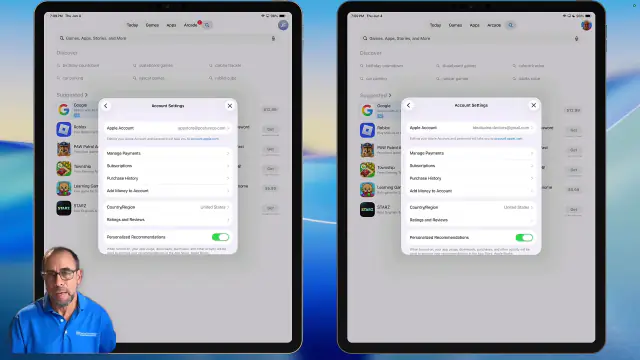
Step 2: Check the Apple account on each device in the App Store 0:50#

- Open the App Store on each device you want to compare.
- Tap the profile icon in the top-right corner.
- Open the account details on each device.
- Compare the Apple account email address shown there.
- Do not confuse this with the email address used inside the Posture Screen app itself.
Step 3: Verify whether the devices are using different Apple IDs 1:33#

- If the Apple account emails are different, the subscription will not share between those devices.
- Apple treats those as separate accounts, even if you personally own both devices.
- Apple’s rules do not allow subscription sharing across different Apple IDs unless they are part of an approved family-sharing setup.
Step 4: Do not change Apple accounts without checking first 2:24#

- If the app was originally installed under one Apple account, simply switching to another Apple account may not fix the issue.
- This is especially important if Posture Screen was already installed on another device under a different account.
- Before deleting or reinstalling the app, contact support for guidance.
Step 5: Contact support before making changes#

- Email support@posturescreen.com before deleting, reinstalling, or changing accounts.
- Support may be able to suggest the best next step if the app was installed under the wrong Apple ID.
- This is a common issue, especially when someone first installs the app on a personal device and later wants to share it with staff.
Step 6: Understand the limits of support access 3:22#

- The support team cannot access your Apple account or view your purchases directly.
- They do not have backdoor access to Apple subscriptions.
- The only account-related information they can see is what is attached when you send a support ticket from the device, including device information.
Step 7: Use this method to identify the correct account going forward 3:55#

- The key takeaway is to identify the Apple account in the App Store, not the email inside Posture Screen.
- If you need help confirming purchases or subscriptions, use Apple account settings or a separate tutorial for purchase lookup.
- This process helps determine why a subscription is not appearing on another device.
Related articles
-
 PostureScreen for iPad & iPhone
Transferring App to another Account and problems with subscriptions
We are asked often about switching or transferring Apple accounts, or why a customer’s subscription is working on some devices but not on…
Video · 11:007 min read
PostureScreen for iPad & iPhone
Transferring App to another Account and problems with subscriptions
We are asked often about switching or transferring Apple accounts, or why a customer’s subscription is working on some devices but not on…
Video · 11:007 min read
-
PostureScreen for iPad & iPhone
Requesting Email change on your PostureCo Cloud Services account
Please note the following is to be used for only changing your Enterprise PostureScreen Account Ownership, Your SyncScreen Cloud…
Video · 5:251 min read
-
PostureScreen for iPad & iPhone
Apple ID Basics FAQs
These are some common FAQs concerning Apple ID that people have. Please see this Apple
Article
-
PostureScreen for iPad & iPhone
Is PostureScreen Cloud backup Services Tied to Apple ID?
Question: Do you need to use an Apple ID for Cloud backup service Accounts? Answer: The short answer is no, the Cloud Backup Services…
1 min read
-
PostureScreen for iPad & iPhone
Advanced Thoraco-Lumbar Tangents and CVA/Skull Gaze Angle
In this tutorial we will review the new assessment update that allows you to turn on additional postural mensuration for both the 2-View…
Video · 15:451 min read
-
PostureScreen for iPad & iPhone
Alternate Backdrop Calibration
In this tutorial, we’ll demonstrate how to calibrate a linear distance using a known reference measurement within the patient’s photo…
Video · 8:262 min read
Have a question?
Talk to the people who build PostureScreen and PostureRay.
PostureScreen support is by email. Live PostureRay support runs Monday through Friday, 9 AM–5 PM Eastern (excluding U.S. holidays).