




Shoulder Range of Motion (ROM) in PostureScreen
On this page 5 sections
Summary
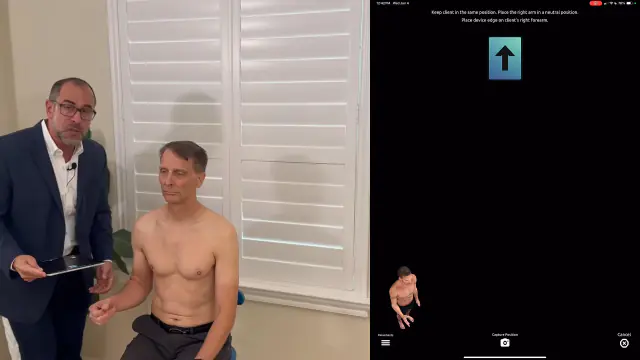
Bilateral Shoulder Range of Motion Tutorial
Shoulder Bilateral Range of Motion Tutorial#
 4:19
4:19
Bilateral Shoulder Range of Motion Tutorial
Step-by-Step Tutorial#
Bilateral Shoulder Range-of-Motion Module – PostureScreen
Step 1: Prepare the Case#
- Open the existing patient record (or create a new one).
- Tap ➕ (Add) › Range of Motion › Shoulder Range of Motion.
- When prompted, choose Both Shoulders (bilateral).
- Confirm whether you want 1 or 3 repetitions and whether you will mark points of pain.
Step 2: Configure Image Capture#
| Setting | What It Does | Tips |
|---|---|---|
| Background Removal | Replaces the live background with solid white. | Leave ON for clean images; toggle OFF if the algorithm clips clothing or limbs. |
| Spoken Prompts | Audible instructions after each shot. | Lower the volume or mute once you have the sequence memorized. |
| Volume-Rocker Shutter | Use the iPad’s physical buttons to capture. | If desired, eliminates the need to reach for on-screen controls. |
Step 3: Position the Patient#
Seat the client on a swivel chair so they can rotate without standing.
Hold the iPad in landscape, roughly shoulder-height, at arm’s length.
Step 4: Capture Bilateral Abduction/Adduction#
- Neutral start: Patient’s arms at sides, palms forward.
- First image: Center the frame › Press Volume Up, or the on screen Capture button.
- Left arm adduction: Patient brings left arm across chest › Capture the position.
- Right arm adduction: Patient brings right arm across chest › Capture the position.
(PostureScreen automatically instructs “Keep client in the same position…”)
Step 5: Capture Internal / External Rotation (Arm at Side)#
Many clinicians still prefer the traditional “arm-at-side” method; PostureScreen supports both this and neutral-arm methods.
- Place the device flat against the mid-forearm of the side being measured.
- Internal rotation: Patient rotates forearm inward › Capture the position
- External rotation: Patient rotates forearm outward › Capture the position
- Repeat on the opposite side, repositioning the iPad firmly each time.
Watches or bracelets don’t affect accuracy as long as the device is flush.
Step 6: Capture Flexion / Extension (Each Arm Individually)#
- Ask the patient to turn facing sideways to you.
- Flexion: Patient lifts the arm straight forward to end-range › Capture the position
- Extension: Patient sweeps the arm straight backward › Capture the position
- Rotate the chair 180 ° (or have patient spin) and repeat for the other arm.
Step 7: Finish, Review & Edit#
- Tap Finish Exam; results are auto-plotted.
- If a marker seems off-axis, open that frame, drag the yellow dot to the correct anatomical landmark, and save it.
- Export or attach the ROM report to the patient’s chart as usual.
Pro Tips#
- One-Hand Workflow: Keep your thumb on Volume Up—it’s faster than tapping the screen.
- Rep Variations: Use 3 reps for athletes or rehab progress tracking; 1 rep for routine screens.
- Pain Mapping: Tap the screen when the patient indicates pain; PostureScreen logs the angle automatically.
Quick Summary#
- Add the Shoulder ROM exam under the patient’s record and choose bilateral.
- Toggle background removal and spoken prompts to your preference.
- Capture images in this order: neutral ➜ left adduction ➜ right adduction ➜ left internal/external ➜ right internal/external ➜ left flexion/extension ➜ right flexion/extension.
- Use the volume rocker for hands-free shots; a swivel chair keeps alignment consistent.
- After capture, edit any landmarks, then generate the report.
With a little practice you’ll complete a full bilateral shoulder session—images, angles, and pain points—in under two minutes.
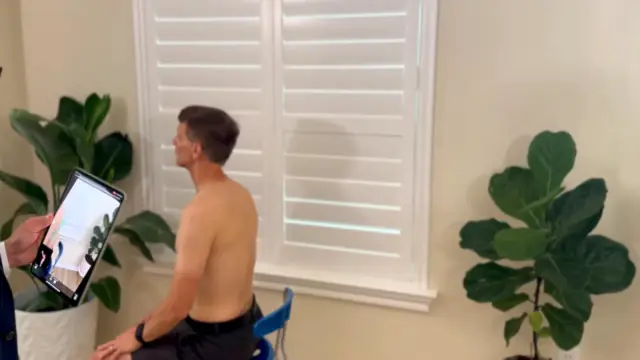
Shoulder (Single Side) Range of Motion Tutorial#
 5:04
5:04
Single Shoulder Range of Motion Tutorial
Related articles
-
 PostureScreen for iPad & iPhone
Cervical Range of Motion (ROM) Tutorial
The Cervical Range of Motion (ROM) module supports both single and triple repetition testing, with the option to mark points of pain…
2 videos · 21:561 min read
PostureScreen for iPad & iPhone
Cervical Range of Motion (ROM) Tutorial
The Cervical Range of Motion (ROM) module supports both single and triple repetition testing, with the option to mark points of pain…
2 videos · 21:561 min read
-
PostureScreen for iPad & iPhone
Thoraco-Lumbar Range of Motion Tutorial (Thoracic and Lumbar ROM)
The following is a tutorial on thoraco-lumbar range of motion testing. Please note like all range of motion testing, you need to have the…
2 videos · 22:554 min read
-
PostureScreen for iPad & iPhone
PostureScreen Measurement Parameters
Reference tables for PostureScreen customers: the anatomical points behind each angle and distance in PostureScreen, SitScreen…
12 min read
-
PostureScreen for iPad & iPhone
PostureScreen Tips: Forward head posture and shoulder protraction
In this tutorial we will review on suggested marking of a lateral posture for objectively measuring anterior cervical translation (forward…
Video · 4:50
-
PostureScreen for iPad & iPhone
Annotating Movement Screen Videos
In this tutorial we will review how to annotate a Lateral SquatScreen Assessment. Many people already know we can video a generic movement…
Video · 3:401 min read
-
PostureScreen for iPad & iPhone
Advanced Thoraco-Lumbar Tangents and CVA/Skull Gaze Angle
In this tutorial we will review the new assessment update that allows you to turn on additional postural mensuration for both the 2-View…
Video · 15:451 min read
Have a question?
Talk to the people who build PostureScreen and PostureRay.
PostureScreen support is by email. Live PostureRay support runs Monday through Friday, 9 AM–5 PM Eastern (excluding U.S. holidays).