







Google Drive Integration with PostureScreen
On this page 28 sections
Summary
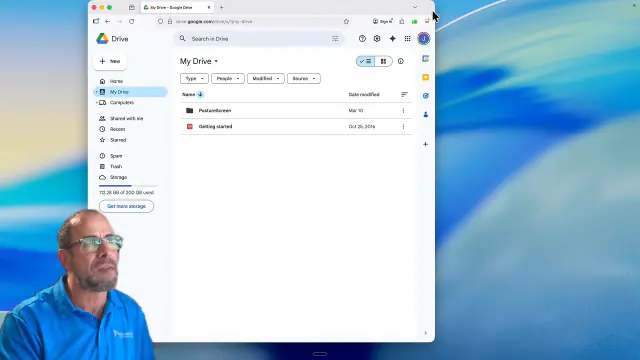
PostureScreen now includes a fully revamped Google Drive integration, allowing you to automatically store patient reports, notes, and documentation directly in your Google Drive.
 7:38
7:38
Overview#
PostureScreen now includes a fully revamped Google Drive integration, allowing you to automatically store patient reports, notes, and documentation directly in your Google Drive.
This feature eliminates manual workflows (such as emailing files to yourself) and provides a secure and efficient method for managing patient data. Google Drive is a third-party service that you choose to connect; it is not part of PostureCo’s services. Before you store patient information in it, see the HIPAA Compliance Note below.
Key Benefits#
- ✅ Automatic file storage in Google Drive
- ✅ Eliminates manual email/file transfer workflows
- ✅ Organized patient-specific folders
- ✅ Stores both PDFs and editable text files
- ✅ Compatible with AI-generated notes (PostureScribed.ai)
- ✅ Can be used for PHI under a Google Workspace (business) account covered by your own BAA with Google
HIPAA Compliance Note#
Google Drive is a third-party service that you choose to connect. It is not part of PostureCo’s services, and no agreement with PostureCo, including any BAA with PostureCo, covers the files you store in it. If you are a HIPAA covered entity or business associate (most practices that bill health insurance electronically are), you should store protected health information (PHI) in Google Drive only if:
- You use a Google Workspace (business) account, not a personal Gmail account
- You have executed your own Business Associate Agreement (BAA) with Google that covers Google Drive, and you set up your account as that agreement requires
If you work in health and fitness only and are not covered by HIPAA, these steps are recommended but optional. Whether you take them is up to you, as long as you follow any other privacy law that applies to your clients’ information. See Section 7 of our Terms of Service.
Initial Setup#
Step 1: Connect Google Drive#
- Open PostureScreen
- Navigate to settings or integration area
- Sign in to your Google account
- Grant permissions to connect Google Drive
Step 2: Automatic Folder Creation#
Once connected:
- PostureScreen will automatically create a dedicated folder in your Google Drive:
PostureScreen/ - Inside, patient-specific folders will be generated automatically when data is saved
How File Organization Works#
When you send or save data:
A patient folder is created using:
- Patient name
- Unique identifier (if applicable)
Inside each patient folder, you may see:
- 📄 PDF reports
- 📝 Text files (editable notes)
- 📊 Assessment data
- 🧾 Consent forms (if applicable)
Using Google Drive with AI Notes (PostureScribed.ai)#
If you are using PostureScribed.ai:
Signed notes are automatically saved to Google Drive
Files include:
- PDF version of the note
- Text version for copy/paste into EHRs
Note: Google Drive integration works independently—you do not need PostureScribed.ai to use it.
Saving Clinical Notes to Google Drive#
Step-by-Step#
Open a completed note or scribe
Review and edit as needed
Tap Sign Off (use finger or stylus for signature)
Once signed:
- Files are automatically uploaded to Google Drive
What Gets Saved#
- Patient summary
- Clinical documentation
- Supporting data (e.g., ICD-10 analysis if used)
Sending Reports to Google Drive#
Option 1: Combined Client PDF#
Go to Reports
Select Combined Client PDF
Generate the report
Tap:
- View More → Google Drive
Result:
Sends:
- Full report
- Images
- Notes (if included)
Option 2: Professional PDF Report#
- Generate a Professional PDF Report
- Save and send to Google Drive
Includes:
- Exam results
- Posture assessments
- Any associated notes
Option 3: Individual Data (e.g., ROM, posture)#
- Open an assessment (e.g., Range of Motion)
- Tap Send
- Select Google Drive
Result:
- Creates or updates patient folder
- Uploads selected PDF immediately
Understanding Report Types#
Professional Report#
Full clinical detail
Includes:
- Exam findings
- All assessments
- Integrated notes
Client Report#
Simplified, patient-friendly format
Includes:
- Layman’s explanation (SOAP-style summary)
- Visual posture data
What to Expect After Upload#
Files typically appear in Google Drive within:
- 1–2 minutes (depending on internet speed)
Folder structure is automatically maintained
No manual organization required
Example Folder Structure#
PostureScreen/
   └── John Doe - 12345/
         ├── Scribe Note.pdf
         ├── Scribe Note.txt
         ├── Professional Report.pdf
         ├── Client Report.pdf
         ├── Range of Motion.pdf
         └── Data Services/
Workflow Improvements#
Before:
- Export → Email → Download → Upload to EHR
- Multiple steps, time-consuming
Now:
- Sign → Auto-save to Drive → Access instantly
EHR Integration (Important)#
Direct EHR integrations are currently in progress
In the meantime:
- Use Google Drive as a centralized storage hub
- Copy/paste text files into your EHR as needed
If your EHR does not integrate with PostureScreen:
- Contact your EHR vendor
- Ask them to connect with PostureScreen
Troubleshooting#
Files Not Appearing#
- Wait 1–2 minutes
- Check internet connection
- Refresh Google Drive
Google Drive Not Connected#
- Re-authenticate your Google account in PostureScreen
HIPAA Concerns#
Confirm you are using:
- Google Workspace (not personal Gmail)
- Signed BAA with Google
Support#
For assistance:
- 📧 Email: support@posturescreen.com
Summary#
The Google Drive integration in PostureScreen provides:
- Faster workflows
- Secure document storage
- Automatic organization
- Reduced administrative burden
It is a significant upgrade for clinics looking to streamline documentation and improve efficiency.
Related articles
-
 PostureScreen for iPad & iPhone
ChiroHD Integration for PostureScreen
Introduction to the integration of PostureScreen with Chiro HD.
Video · 6:131 min read
PostureScreen for iPad & iPhone
ChiroHD Integration for PostureScreen
Introduction to the integration of PostureScreen with Chiro HD.
Video · 6:131 min read
-
PostureScreen for iPad & iPhone
DropBox & Google Drive Integration with PostureScreen: Sending Reports and Images
Google Drive Direct Integration has been included starting in version PostureScreen 15.5 PostureScreen now includes a fully revamped…
2 videos · 19:357 min read
-
PostureScreen for iPad & iPhone
3D Practice Integration with PostureScreen
Tutorial forthcoming. Reach out to Support@PostureScreen.com via email if you have any questions.
Article
-
PostureScreen for iPad & iPhone
DropBox Folders – Find PDFs and Images
Many people have called and express that they are having problem locating the files they push (both images and PDFs) from PostureScreen…
1 min read
-
PostureScreen for iPad & iPhone
Advanced Thoraco-Lumbar Tangents and CVA/Skull Gaze Angle
In this tutorial we will review the new assessment update that allows you to turn on additional postural mensuration for both the 2-View…
Video · 15:451 min read
-
PostureScreen for iPad & iPhone
Alternate Backdrop Calibration
In this tutorial, we’ll demonstrate how to calibrate a linear distance using a known reference measurement within the patient’s photo…
Video · 8:262 min read
Have a question?
Talk to the people who build PostureScreen and PostureRay.
PostureScreen support is by email. Live PostureRay support runs Monday through Friday, 9 AM–5 PM Eastern (excluding U.S. holidays).