





ChiroHD Integration for PostureScreen
On this page 12 sections
Summary
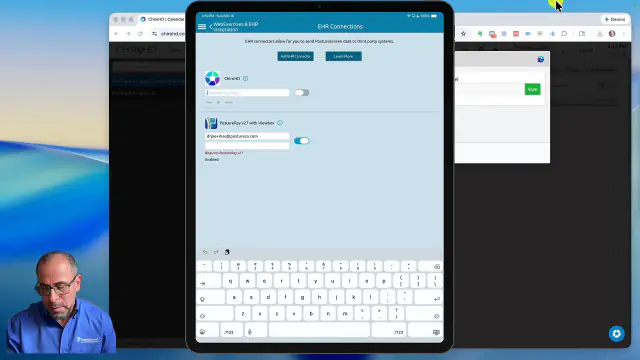
Introduction to the integration of PostureScreen with Chiro HD.
 6:13
6:13
Step-by-Step Guide#
Step 1: Introduction to Integration 0:00#
Introduction to the integration of PostureScreen with Chiro HD.
Highlights the benefits of sending exams and assessments in PDF format as well as jpegs, including:
- Posture assessments
- Range of motion assessments
- Body composition assessments
- Functional movement screens
Step 2: Logging into Chiro HD 0:46#
- Log into your Chiro HD account.
- Navigate to the settings menu.
Step 3: Accessing Integration Settings 0:56#
- Go to ‘Initial Setup’ in the settings.
- Click on ‘Integrations’.
Step 4: Obtaining the Authentication Key 1:07#
Click on ‘X-rays’ to find the authentication key.
Copy the authentication key:
- If using a Mac, use the universal clipboard to copy and paste directly into PostureScreen.
- Alternatively, open ChiroHD on your iPad, copy the key, and paste it into PostureScreen as demonstrated
Step 5: Setting Up on iPad 2:17#
- Go to the settings menu on your iPad.
- Click on ‘Web Exercise and EHR Integration’.
Step 6: Adding EHR Integration 2:41#
- Click on ‘EHR Integrations’.
- Select ‘Add EHR’ and choose ‘ChiroHD’.
- Paste the copied authentication key into the designated field.
Step 7: Activating the Integration 3:07#
- Turn on the integration after pasting the key.
Step 8: Preparing to Send Data 3:15#
- Ensure you have the patient ID number from Chiro HD.
- Example: Patient ID number is 18716 in this example
Step 9: Sending Exam Data 4:12#
- Select the exam you want to send from PostureScreen.
- Click ‘Send’ to route the exam findings and PDFs to ChiroHD.
- You may send individual assessments or all combined assessments in one push to ChiroHD
Step 10: Verifying Data in Chiro HD 5:00#
- Go to the patient chart in Chiro HD.
- Scroll down to find the posture exams and range of motion data.
- Confirm that all data is correctly displayed for patient reference.
Step 11: Support and Questions 6:00#
- For any questions, contact support at PostureScreen or ChiroHD.
Related articles
-
 PostureScreen for iPad & iPhone
Google Drive Integration with PostureScreen
PostureScreen now includes a fully revamped Google Drive integration, allowing you to automatically store patient reports, notes, and…
Video · 7:384 min read
PostureScreen for iPad & iPhone
Google Drive Integration with PostureScreen
PostureScreen now includes a fully revamped Google Drive integration, allowing you to automatically store patient reports, notes, and…
Video · 7:384 min read
-
PostureScreen for iPad & iPhone
What EHR’s Does PostureScreen (iOS) and PostureRay Integrate with?
Both PostureScreen and PostureRay have full native integration with:
1 min read
-
PostureScreen for iPad & iPhone
3D Practice Integration with PostureScreen
Tutorial forthcoming. Reach out to Support@PostureScreen.com via email if you have any questions.
Article
-
PostureScreen for iPad & iPhone
DropBox Folders – Find PDFs and Images
Many people have called and express that they are having problem locating the files they push (both images and PDFs) from PostureScreen…
1 min read
-
PostureScreen for iPad & iPhone
Advanced Thoraco-Lumbar Tangents and CVA/Skull Gaze Angle
In this tutorial we will review the new assessment update that allows you to turn on additional postural mensuration for both the 2-View…
Video · 15:451 min read
-
PostureScreen for iPad & iPhone
Alternate Backdrop Calibration
In this tutorial, we’ll demonstrate how to calibrate a linear distance using a known reference measurement within the patient’s photo…
Video · 8:262 min read
Have a question?
Talk to the people who build PostureScreen and PostureRay.
PostureScreen support is by email. Live PostureRay support runs Monday through Friday, 9 AM–5 PM Eastern (excluding U.S. holidays).