



RemoteScreen Setup and First Use for Client/Patient
On this page 5 sections
Summary
Learn how to set up the RemoteScreen app on your iPhone for virtual posture assessments!
📲 This easy-to-follow tutorial walks patients and clients through the simple setup process—from downloading the app to securely linking with your healthcare provider’s PostureScreen Cloud.
RemoteScreen is the official companion app to PostureScreen for iOS. It allows patients, clients, or even friends and family to capture and upload posture photos for remote virtual assessments by their chiropractor, physical therapist, or fitness professional. All images are securely transmitted for professional evaluation.
To install RemoteScreen from the Apple AppStore, click the following link on your iPhone or iPad: https://itunes.apple.com/app/id1199089686
To install RemoteScreen from the Android Google Play Store on your Android phone, click the following link on your Android phone: https://play.google.com/store/apps/details?id=com.postureco.remotescreenandroid
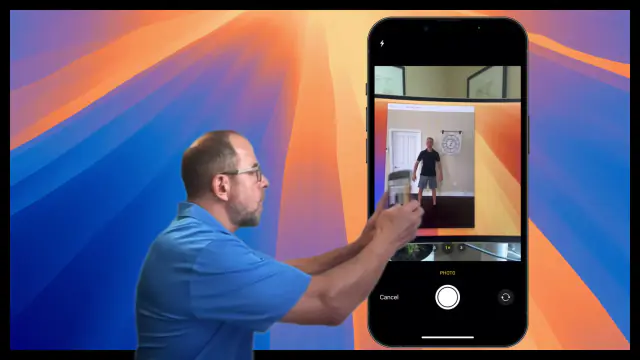 7:34
7:34
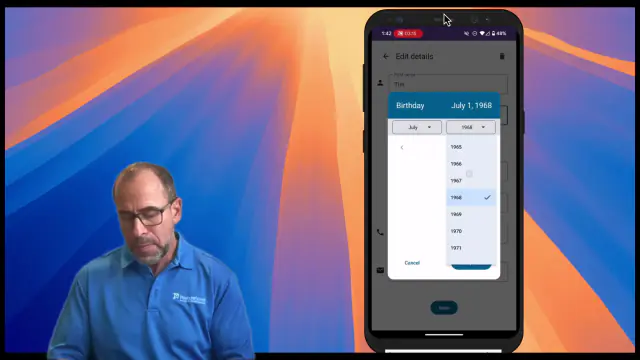 5:33
5:33
How to Use the RemoteScreen App for Virtual Posture Assessments#
RemoteScreen is a free companion app for patients and clients to send posture photos securely to their healthcare provider who uses PostureScreen. Whether you’re working with a chiropractor, physical therapist, personal trainer, or wellness provider, this guide will walk you through how to get started step-by-step.
✅ What You’ll Need:#
- An iPhone or iPad or Android Phone or tablet
- Access to the App Store / Google Play AppStore
- An email address from your provider to connect with their secure PostureScreen cloud
🛠 Step-by-Step Instructions:#
Step 1: Download the RemoteScreen App#
- Open the App Store on your iPhone or Google Play if on Android phone
- In the search bar, type RemoteScreen (one word).
- Find the app called “RemoteScreen Connect” on iOS and “RemoteScreen” Android
- Apple iOS Download link: https://itunes.apple.com/app/id1199089686
- Android Download link: https://play.google.com/store/apps/details?id=com.postureco.remotescreenandroid
- Tap “Get” or the download icon. The app is 100% free.
- Once downloaded, tap “Open” or find it on your home screen.
Step 2: Connect with Your Provider#
Open the RemoteScreen app.
When prompted, enter your provider’s email (they will give this to you).
- Example: provider@example.com
Tap the “Add Professional” button to link your app to their secure cloud.
If there is an error:
- Double-check that you typed the email correctly.
- Contact your provider to confirm the address.
Step 3: Add Your Information#
Tap “Add Person” to create your profile.
Take or upload a profile photo (face/headshot).
Fill out your basic info:
- Name
- Gender
- Date of Birth
- Height (choose between feet/inches or metric)
- Phone number and email (use your real email)
Step 4: Take Posture Photos#
You’ll typically need 2 photos:
- Front view
- Right Side view ( yourright side facing the camera)
Have a friend, spouse, or family member to take the photos.
- The app has an on-screen guide to help frame the images properly.
Make sure the person being photographed is standing straight and relaxed.
Ensure proper lighting and avoid busy backgrounds.
🔁 TIP: You can also import photos from your camera roll if they were already taken.
Step 5: Submit the Assessment#
Once your photos are taken:
- Tap “Send to Provider”.You may be asked to add notes (e.g., “lower back pain and headaches”).
- Enter your current body weight.
- Confirm that you’re ready to send.
- The app will securely upload your photos and information to your provider’s cloud.
Step 6: What’s Next?#
Your provider will review the photos and send you a report or contact you to go over results.
You can return to the app at any time to:
- Add more assessments
- Screen other family members (with their permission)
- Update your details
❓ Common Questions#
Q: Is this app free?
✅ Yes! RemoteScreen is completely free for patients and clients.
Q: Is my data secure?
🔒 Your photos and information are encrypted while they are sent to your provider’s HIPAA compliant PostureScreen Cloud and while they are stored there. No method of sending or storing information is completely secure. To learn how your information is handled, read the RemoteScreen Patient App Privacy Policy.
Q: Can I use this for more than one person?
👨👩👧👦 Yes, with their permission (or as their parent or legal guardian), you can screen family members or friends and send their information to the same provider. RemoteScreen is not directed to children under 13, and PostureCo does not knowingly collect personal information directly from a child under 13. For a child under 13, a parent or legal guardian must complete RemoteScreen on the child’s behalf; the child must not use it on their own. Minors aged 13 to 17 may use it only with a parent’s or legal guardian’s permission and as your provider allows (see the RemoteScreen Patient App Privacy Policy).
Q: What if I make a mistake?
🗑 You can delete and retake any photos before sending them. If already submitted, contact your provider for help.
🆘 Need Help?#
If you’re having trouble:
- Ask your provider first – they can assist with linking to their cloud and setup.
If they need help, they can contact PostureScreen support directly at support@posturescreen.com
Related articles
-
 RemoteScreen
 Invitations – Sending Client RemoteScreen Code
In the following tutorial we will review how to invite both an established client / patient and non-established client / patient to your…
Video · 2:281 min read
RemoteScreen
RemoteScreen Invitations – Sending Client RemoteScreen Code
In the following tutorial we will review how to invite both an established client / patient and non-established client / patient to your…
Video · 2:281 min read
-
RemoteScreen
Downloading and Processing a RemoteScreen Movement Screen (Video)
In this tutorial we review how to download a client’s video for their movement assessment.
Video · 2:44
-
RemoteScreen
Downloading and Processing a RemoteScreen Posture Assessment
In this tutorial we will review how to process a RemoteScreen client upload in PostureScreen. RemoteScreen is the companion app used by…
Video · 5:472 min read
-
RemoteScreen
RemoteScreen – How to set up and use.
RemoteScreen is a companion application for clients/patients to securely share their photos and videos to their healthcare or fitness…
Video · 3:561 min read
-
RemoteScreen
RemoteScreen Email Campaign Ideas
In this tutorial we review just some basic ideas we recommend you use if you are doing an email campaign to market for your virtual…
Video · 4:561 min read
-
RemoteScreen
RemoteScreen Troubleshooting
If you have a client stating they sent you an exam through RemoteScreen and you have not received it, please follow these steps.
2 min read
Have a question?
Talk to the people who build PostureScreen and PostureRay.
PostureScreen support is by email. Live PostureRay support runs Monday through Friday, 9 AM–5 PM Eastern (excluding U.S. holidays).